Create a prayer card
Write a prayer for one person or request, pick a category, and add a Bible verse if you want one.
Steps
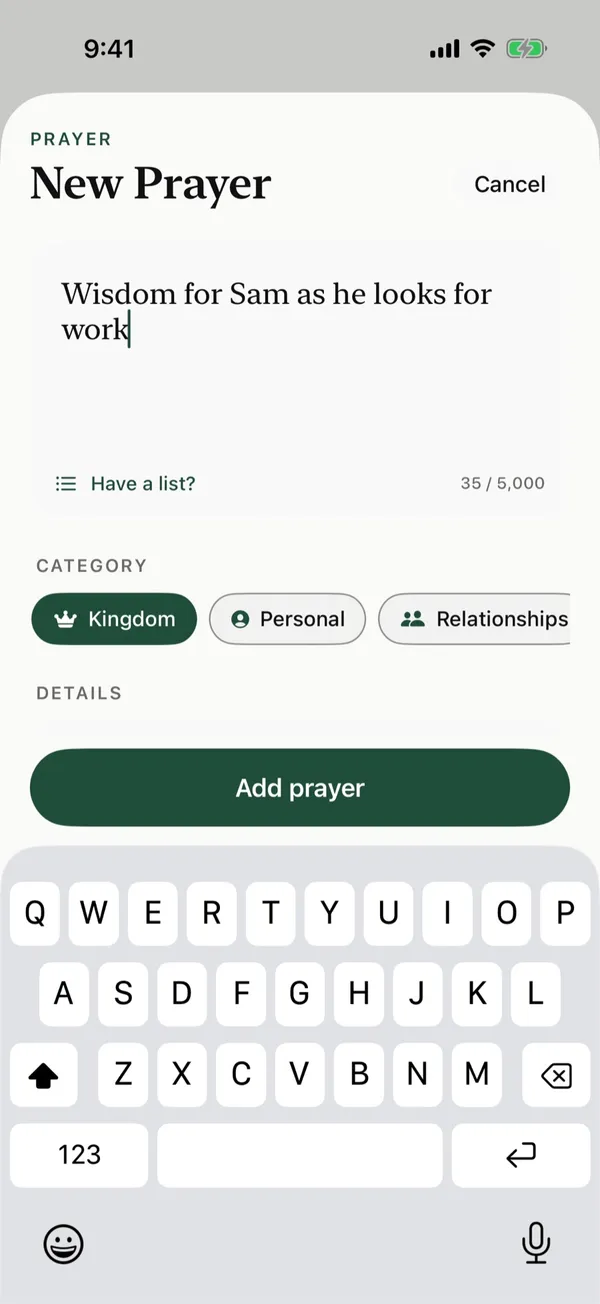
- On Home, tap New prayer card.
- Type your prayer under What would you like to pray for?
- Under Category, tap one, like Family or Health. To make your own, tap New at the end of the list.
- Under Details, add who you're Praying for, how often it should Repeat, an End date, and a Bible verse. Each one is optional.
- Tap Add prayer.
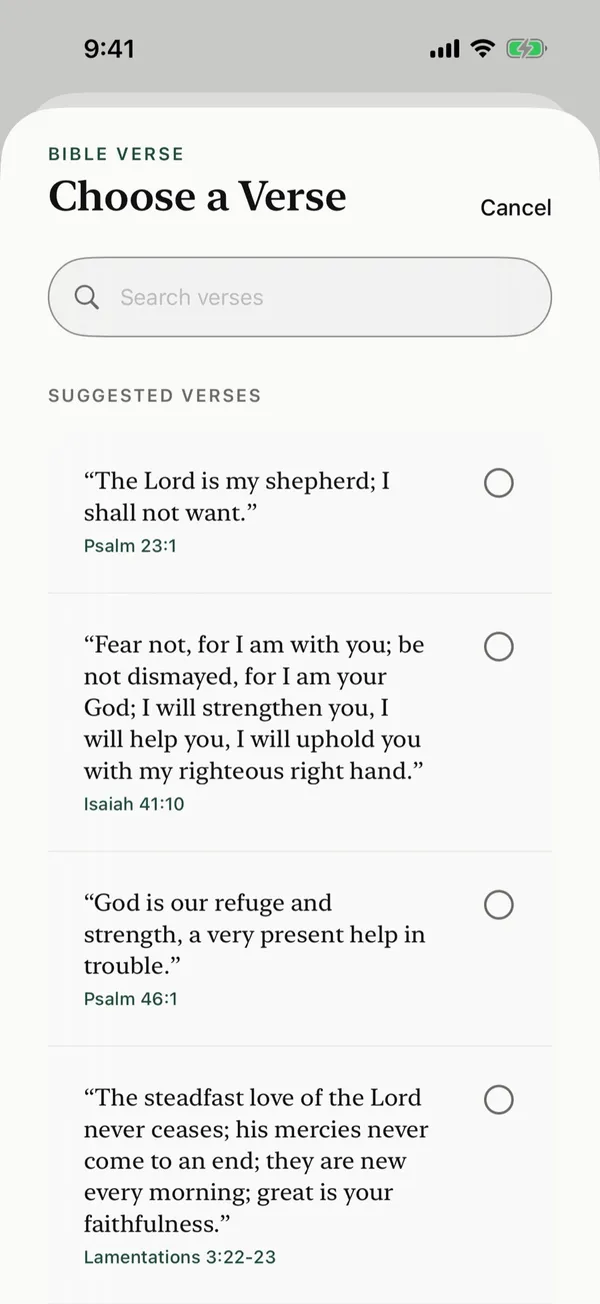
Add a Bible verse
Tap Bible verse, then pick one of the Suggested verses. Tap Suggest for different ones, or type your own verse and its reference and tap Add Verse.
Change a prayer card later
Open the card from Manage, change what you want, and tap Save.
Common questions
What should I write on a prayer card?
Write one person or one need per card, in a sentence or two, the way you would pray it. For example, “Lord, give Mom peace before her surgery on Tuesday, and give her doctors skill.” One clear request per card keeps each prayer short when it comes up.
How does Suggest find a verse?
Write your prayer first, because Suggest uses it to find a verse that fits. If you’d rather choose for yourself, pick one of the Suggested verses or type your own verse and its reference.
Who should I add under Praying for?
Add the people the prayer is about, from your contacts. Their names show on the card while you pray, and afterward you can send them a short text to say you prayed. See tag people and text them.
Where does a new card go?
New cards go to Manage, under their category. Each card comes up in Today on the days its Repeat setting says, so a daily card is there tomorrow morning and a weekly card waits for its day.
Posts about this
- Advent prayers for each week, for you and your familyAdvent prayers for each week of Advent 2026, Scripture to read from God's promises to Christ's return, and simple ways for a family to pray toward Christmas.
- Bible verses about prayer to encourage you to prayBible verses about prayer, grouped by theme, on why to pray, how to pray, praying with faith, and God hearing our prayers, with short notes.
- Bible verses about praying for othersBible verses about praying for others, from Paul's prayers for the churches to Jesus praying for His disciples, with how to turn each verse into a prayer.