Add many prayers at once
Paste the prayer list you already keep, and The Pray App turns each request into its own prayer card, up to 20 at a time.
Steps
- On Home, tap New prayer card.
- Under the prayer text, tap Have a list?
- Paste your list, one request per line. You can add up to 20 at a time.
- Tap Generate Prayers. The app writes a short prayer for each request and sorts each one into a category.
- Check each draft. You can change its Category, its Frequency, and who you're Praying For.
- Tap the Create button to save them. It shows how many prayer cards it will make.
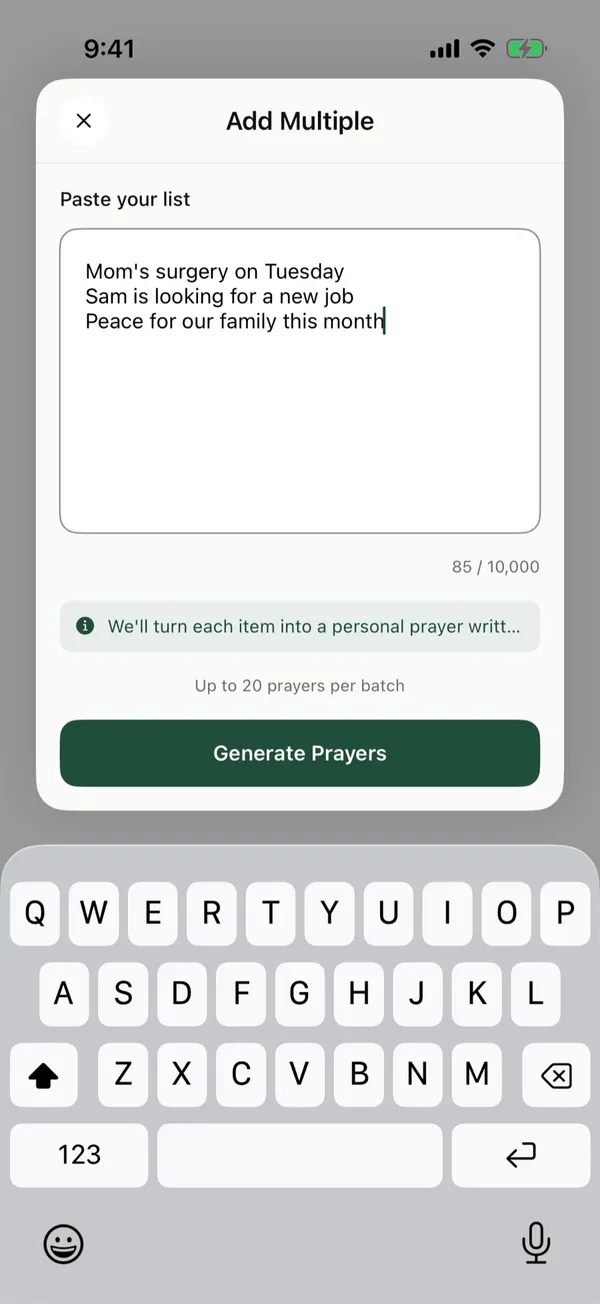
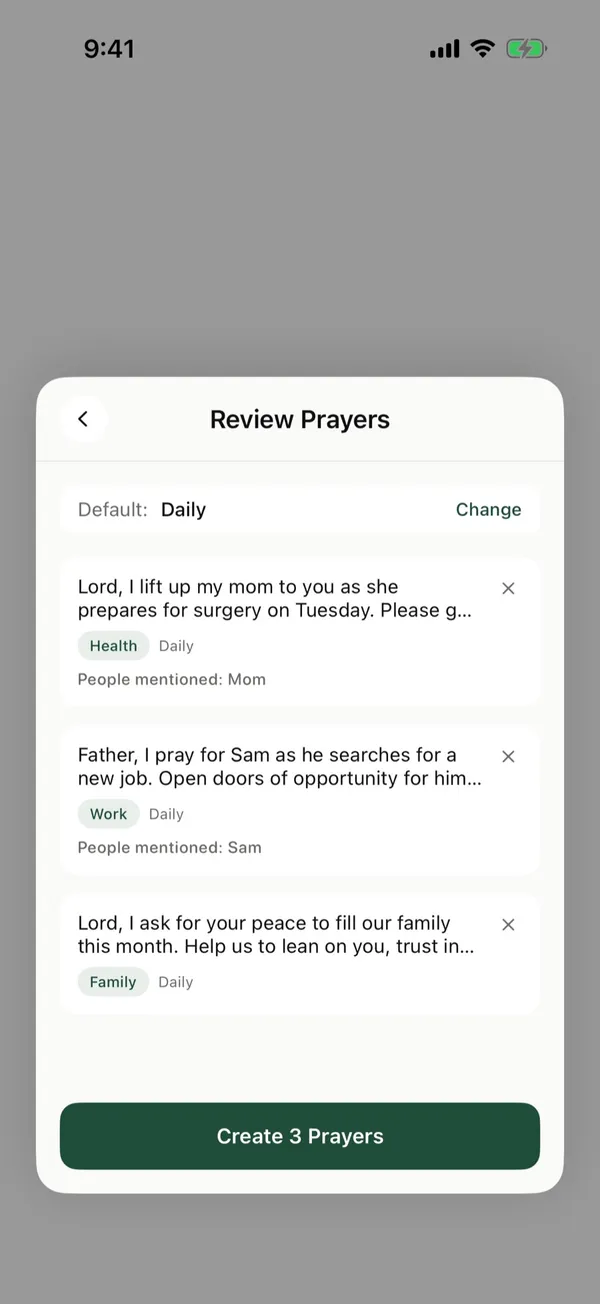
Example
A list like this:
Mom's surgery on Tuesday
Sam is looking for a new job
Peace for our family this month
becomes three prayer cards, one for each line.
Good to know
- Nothing is saved until you tap Create.
- To set how often every draft comes up, tap Change next to Default before you create them.
- When you tap Generate Prayers, the app sends the text you pasted to an AI provider to write the drafts. It does this only when you tap the button.
Common questions
What if my list has more than 20 requests?
Paste the first 20, tap Generate Prayers, and save them with Create. Then tap Have a list? again and paste the rest. Working through a long list in a few rounds also makes each round of drafts quicker to check.
Do I need an internet connection?
Yes, for this step. Generate Prayers needs a connection to write the drafts. Once you tap Create, the new prayer cards are saved on your iPhone like any other card, and you can pray through them offline.
Can I change a draft before I save it?
Yes. Each draft shows its Category, its Frequency, and who you’re Praying For, and you can change any of them before you tap Create. After that, open a card from Manage to edit it like any other card.
What kind of list works best?
One request per line, with a name and a need, like “Sam is looking for a new job.” Each line becomes its own prayer card, so a short, specific line gives you a card that’s easy to pray through when it comes up.
Can I paste a list from Notes or an email?
Yes. Copy the list from Notes, an email, a message, or a church bulletin, and paste it in. Put each request on its own line first, so each one becomes its own card.
Posts about this
- How to keep track of prayer requests without forgettingHow to keep track of prayer requests from friends, church, and family, so you remember to pray, follow up, and see how God answers over time.
- How to make a prayer list you'll actually pray throughHow to make a prayer list in five steps. Write down names, add one need each, sort them, and spread them across the week so each day stays short.
- How to pray for your family, every day and by nameHow to pray for your family by name, what to ask God for each person, Scripture to pray, and how to keep praying for them every week.